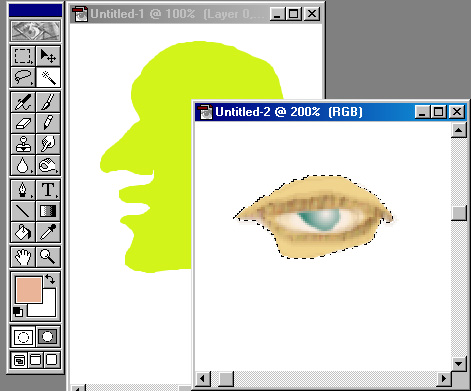
Working with selections, layers, cut and paste.
Suppose you have two drawings, which you'd like to combine in some way. Let's say that you want to move an eye you've drawn in one document into a face you've drawn in another:
1. Select the portion of the first document you'd like to use:
2. Copy it to the clipboard and paste it into the destination document:
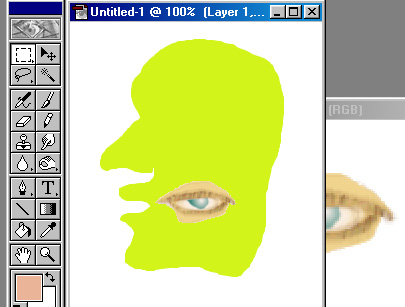
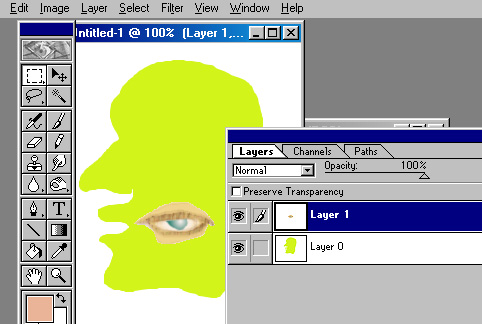
3. Go to the Windows menu and choose "Show layers." What you'll see is a control panel for combining layers:
4. Use the move tool to drag the pasted image around and place it roughly where you want it:
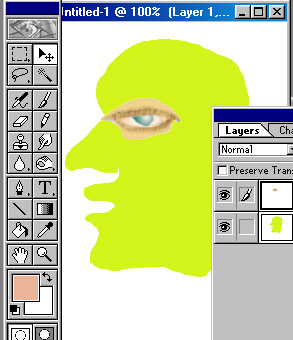
5. Go to the "Layers" menu, rotate, reflect (flip), and rescale as desired.
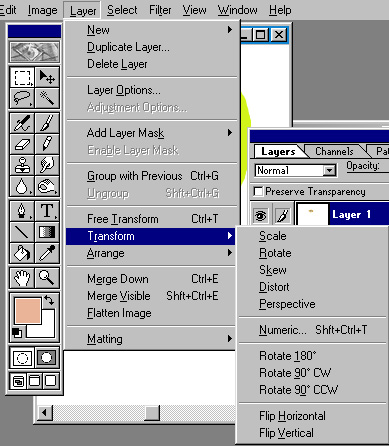
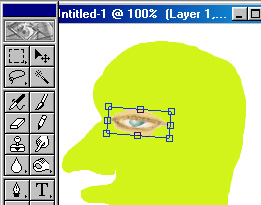
6. Experiment with Control T (which allows many of the above options):
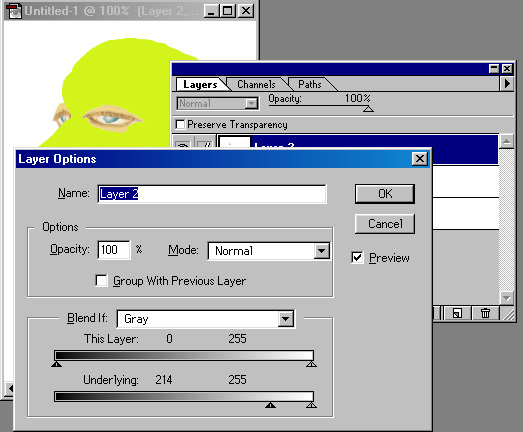
7. Try pasting again, but this time varying the quality of the paste through the layers palette (experiment with opacity, the type of paste --something other than normal, and try layer options -- accessible from the arrow at the upper right of the layers palette).
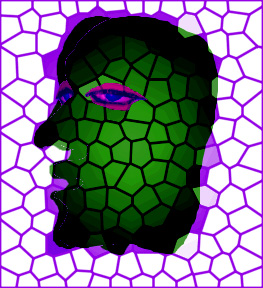
Important!! 8. Before applying any effects to the whole image, you'll first have to flatten it (from the layers menu).
* Note: I am seeking permission for use of Adobe® trademarks, screen shots, and the like as contained in various statements by that corporate entity (e.g. http://www.adobe.com/misc/pdfs/USGenExtTMdb022803.pdf, http://www.adobe.com/misc/permissions.html, http://www.adobe.com/misc/agreement.html, and http://www.adobe.com/misc/trademarks.html ) though the reader might wish to be aware that such permission statements do exist before replicating any marks associated with software companies.