Preparing screen shots for the web
1. Take a picture of your screen, in whatever state you'd like to preserve, by hitting
the Print Screen button (next to F12 on the top row of the keyboard).
2. Start up Adobe® Photoshop® (if you don't have a shortcut elsewhere, then use the windows
"Start" button, and go into Programs and then Adobe).
3. Start a new file (use "New" under the file menu).
4. Paste in the screen shot from the clipboard (use Ctrl V or
"paste" from the edit menu). 
5. Use the zoom tool to zoom in on the part of the graphic you're interested in:
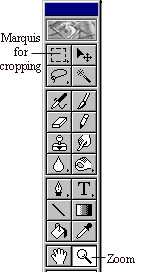
6. Use the marquis tool to "select" (draw a blinking rectangle around) the
portion of the image you want to use.
7. Choose "crop" under the image menu to shave off unwanted
parts of the image
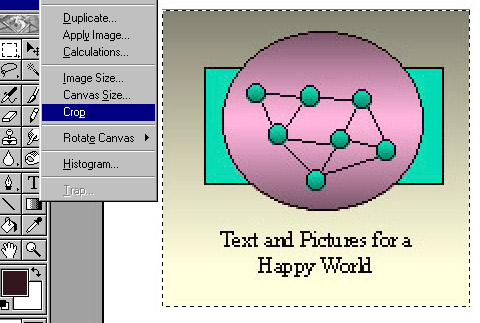
8. Flatten the image (under the layer menu).
9a. Save as jpg
or
9b. Convert to indexed color (Image menu ... mode ... indexed color
... ok (256 colors)),
and save as gif.
10. Point your browser at it to make sure it looks like you want.

The jpg version
11. For printing (from say MS Word) you'll probably want to change the
pixel resolution to 100 dpi.
A note on permissions: I have only recently discovered that one
needs permissions from software companies to use screen shots. More on this
topic will be posted as legal advice arrives.