A bit on the use of gradients:
A gradient or a "ramp" is the application to a region of shading which fades gradually from one color to another. It is a handy way to create effects which mimick the way light reflects off of surfaces.
Let's practice:
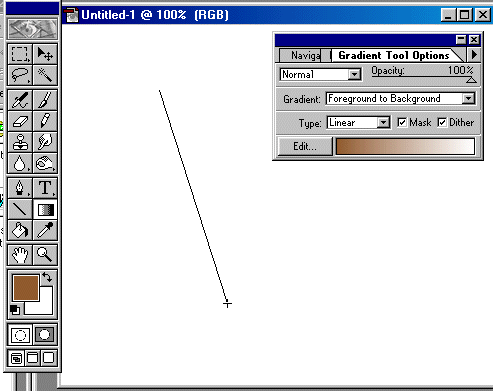
1. Choose a foreground and background color, as desired.
2. Double click on the gradient tool, and choose a type of gradient.
3. Using the gradient tool draw a line segment (clicking at one location and dragging to another) as shown above.
This will apply a gradient or "ramp" fading gradually from the background to the foreground color throughout the entire selection (or throughout the drawing area if no selection is active). The figure below shows a linear gradient fading from brown to white.
4. Now, change the foreground and background colors, and select an area with the lasso tool. Apply a new gradient, changing the gradient type to radial rather than linear:
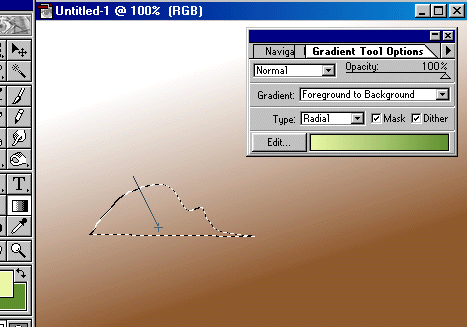
You can then use copy, paste, and rotate (under "layer/transform"), create another ramp (for stem and veins), copy and rotate some more, and then use the magic wand to get to the following point:
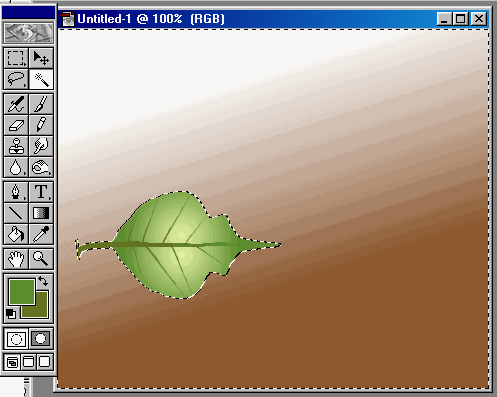
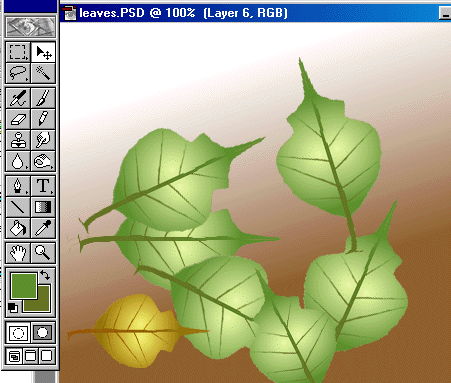
From there by flattening the image, and inverting the selection, you then have a leaf, which can be pasted and rotated about:
* Note: I am seeking permission for use of Adobe® trademarks, screen shots, and the like as contained in various statements by that corporate entity (e.g. http://www.adobe.com/misc/pdfs/USGenExtTMdb022803.pdf, http://www.adobe.com/misc/permissions.html, http://www.adobe.com/misc/agreement.html, and http://www.adobe.com/misc/trademarks.html ) though the reader might wish to be aware that such permission statements do exist before replicating any marks associated with software companies.